
Connect Your Tools to AI 🔗
Link email, notes, files & more

I’ve changed how I use Claude and ChatGPT lately. They’ve become my digital dashboards, linked to many of the tools I rely on.
I can ask Claude to add to my calendar, query my meeting notes, update me on my email, or find a passage I highlighted in my digital notebook.
Claude Connectors and ChatGPT plugins connect to hundreds of services. These include Superhuman Mail for email, Google Calendar, Granola for meeting notes, and Readwise for my online highlights.
Read on for how and why to link your favorite tools to your AI assistant, and examples of connections and queries I’ve found useful so far.
Bonus: I made this new online guide for you based on this post as an experiment with ChatGPT’s new Sites feature. I also made a tipsheet with Claude artifacts to help you get started.
Why Connecting Tools to Claude and ChatGPT Is So Useful
Claude and ChatGPT know the context for my work because I’ve set up Projects for my primary work areas. Each has detailed instructions and reference documents. And the AI has a memory of the work I do, my style, my preferences, and my objectives. So I can ask my AI assistant to:
Plan: Add four prep sessions to open morning slots on my calendar next week for the classes I’m teaching this fall. Include in each event description relevant excerpts from my meeting summary and reference the recent planning notes I dictated.
Research: Gather recent links I’ve saved to Raindrop, my bookmarking tool, that might be relevant to my team’s research. Then create a new reminder with those links and a summary of my recent related notes.
These multiple-part commands require context. They won’t work in Google Calendar, Raindrop, or Granola directly. That’s why it’s so helpful to have Claude or ChatGPT as the command center.
Sponsored Message

Remember More of What You Read
I often finish a good nonfiction book with a handful of useful ideas. Then I gradually forget the details. Can you relate?
Shortform gives me a practical way to revisit the books I want to remember. Its guides are written and edited by people, not robots. The guides include clear book overviews as well as deeper analysis, which I appreciate because I want to get beyond the surface. I also like that the guides include examples and quotes. And they often mention connections to related books, which is useful for ideas on what else to read.
On the Shortform app I recently read the guide to The Meaning of Your Life, by Arthur Brooks, which led me to Vivek Murthy’s book, Together, about the loneliness epidemic.
I use Shortform both to refresh my memory on books I’ve already read, and to explore potential new titles before I decide what to read next. Try it to find guides for business books, education, psychology, biography, and more.
Wonder Tools readers get a free trial and $50 off the annual plan.
MCP is the New USB 🔗
These connectors have a technical name: MCP, or Model Context Protocol. But just as you don’t need to think about USB details when you plug in a printer, or http specifications when you use the Web, you can use MCP without understanding its technical details. All you need to know is that MCP is a way of linking software tools, sites, and apps to AI platforms like Claude and ChatGPT.
Remember the world prior to USB? Printers, hard drives, cameras, and external monitors had their own special cords to connect to your computer. I just cleaned out dozens of them from a drawer in my Manhattan apartment. Now they’re obsolete because USB ports are everywhere. MCP is a similar unifying standard for linking tools to AI.
5 Ways I’m Using Tools Connected to Claude
Manage Email 📧
I rely on Superhuman Mail to read, organize, and respond to email. It’s fast, easy to use, reliable, and integrates with my calendar. I use it with three distinct email addresses. Because I have to act on important messages, I’ve linked it to Claude.
Get started: The connection guide walks you through linking your email to Claude or ChatGPT. You can then ask your AI assistant to:
“Help me turn a bunch of starred emails into an afternoon plan.”
“List important messages I’ve sent this month that the recipient hasn’t yet opened.”
“Draft concise responses to routine customer questions for my review.”
Some of these tactics will also work with Gmail and Outlook connectors.
Example query: “Look at my five most recent starred emails, suggest an action list for this afternoon based on my priority list, then put an hour on my Google Calendar to act on them.”
Do More with Meeting Notes 🗒️
I use Granola as my notepad during meetings. It transcribes conversations, then creates a summary based on the transcript and my own notes. (See my guide). I can already ask questions about my meetings in Granola without needing a separate AI tool.
But the advantage of linking Granola with Claude (or ChatGPT) is that Claude has access to insights in my notes, email, and Google Drive, so it can integrate the info it pulls from Granola within the context of a broader analysis.
Get started: The Granola MCP guide explains how to link it to your AI. Unlike many other paid services, Granola actually lets free users query meeting notes (for the past 30 days) using your AI tool of choice.
Example query: “Give me a summary of the research questions I said I’d follow up on in my meeting with Pat. Next to each task include a bulleted list of the background details I already collected in my research spreadsheet.”
Edit Images and Videos 🌆
Photoshop and Premiere are powerful but complicated. Now you can edit an image or video without even opening a separate app. Set up the plugin, then tell your AI assistant to use it in your prompt. The AI assistants are often clever enough to figure out which tool to use even if you don’t explicitly mention it.
Get started: Install the Adobe app in ChatGPT. Or add it to Claude, using this guide. Your AI assistant will now have access to the capabilities of Photoshop, Premiere, Firefly, Express, Acrobat, and other Adobe apps. You don’t even need an Adobe account to get started, though it might be helpful to get a free one if you want to organize, improve, and act on your creations later. (Canva’s MCP is also useful).
Example query: “Help me change the text in this graphic.” Or “Reformat this horizontal video clip for YouTube Shorts or Instagram Reels.” Or “Add background blur to this headshot, fix the lighting, and crop it for a portrait.”
As a test, I changed the first line in an illustration from “Bold” to “Kind.” Notice that the first attempt wasn’t perfect. The period after “Kind” was missing. But a quick edit request fixed that. The Photoshop edit preserved the font, style, spacing, and angle.
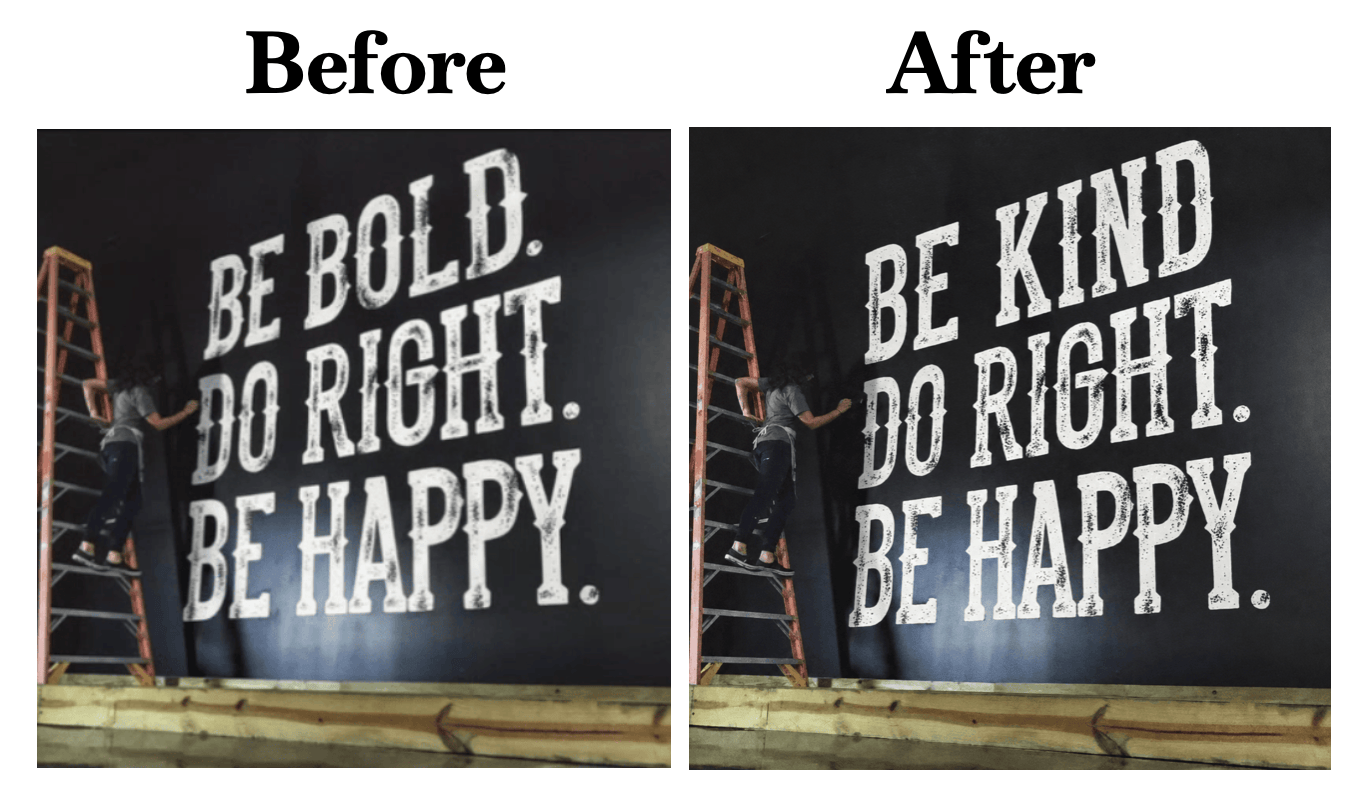
The benefit: Instead of hunting through Photoshop menus trying to figure out how to do this, I just asked ChatGPT to use Photoshop to make a change. In the long run, being able to use natural language to accomplish tasks like this may shift how we spend our time away from technical menu-hopping toward more creative work. We’ll spend more time thinking about what to do and why, rather than how to technically get it done.
Find Highlights 📚
I use Readwise to collect the passages I highlight when reading online or on my Kindle. It also hosts passages I save when listening to podcasts with the Snipd app.
Get started: The Readwise MCP lets you make use of the highlights you’ve made while working on other projects with an AI assistant.
Example query: “Show me a bunch of my Readwise highlights that include descriptions of desserts, especially from European novels, then gather a list of related recipes I can make with my daughters before our trip.”
Research Legal Cases 🔎
Court Listener from the Free Law Project is a handy way of gathering info about court cases. You can ask for records related to Elon Musk’s recent testimony without paying for a legal research service. Thanks to Hong Qu for the tip.
Get started: Use the Court Listener MCP guide for free with Claude or ChatGPT. First set up a free Court Listener account.
Example query: “Review the news article at XYZ link, find the case that’s being discussed, and give me additional details about the case and any other related recent cases.”
Other Useful MCP Tools 🛠️
Rize is my favorite tool for time-tracking. I linked it to Claude so I can learn from how I’m spending my time and assess that alongside info from my meetings, email and calendar. The Rize MCP page includes use-cases and helped me get started. Rize requires a paid subscription.
I use Raindrop to save links I’ll need later. I checked the Raindrop MCP page to set it up and learn about the kinds of queries I can run from Claude. When I’m doing research in a project, for instance, I can ask it to pull in relevant links I’ve saved. Or I can even ask Claude to put the links from a spreadsheet I’m working on into my Raindrop bookmark collection with appropriate tags.
Sublime is another tool I use to save quotes, images and useful pages online. Unlike Raindrop and other well-designed clipping tools like MyMind, which are fully private, Sublime lets me see related material other people have saved. Now I can ask Claude to pull in relevant material from Sublime.
Substack has a new MCP, available to select publishers as of now. It lets Claude coach me on my analytics. I recently asked for an analysis of send times to figure out how they impact open and click rates. Substack’s help page notes that the MCP has “read-only access to publication data such as dashboard metrics, traffic data, and publication settings. It cannot publish posts, send Notes, or modify your account.”

How to Link Tools to Your AI Assistant
Decide what kind of connector will be useful to you.
Email: Gmail, Outlook, Superhuman, and other email services now let you analyze and respond to your messages.
Files: Analyze or act on files in your Google Drive, Dropbox, Box, Slack, Notion, or anywhere else you keep your documents and files.
Planning: Add events to your Google or Outlook calendar, or organize projects with tools like Airtable, Monday, ClickUp, Asana, and Linear.
Fun: Create Spotify playlists based on your work vibe or search StubHub or SeatGeek for tickets your family or friends might enjoy.
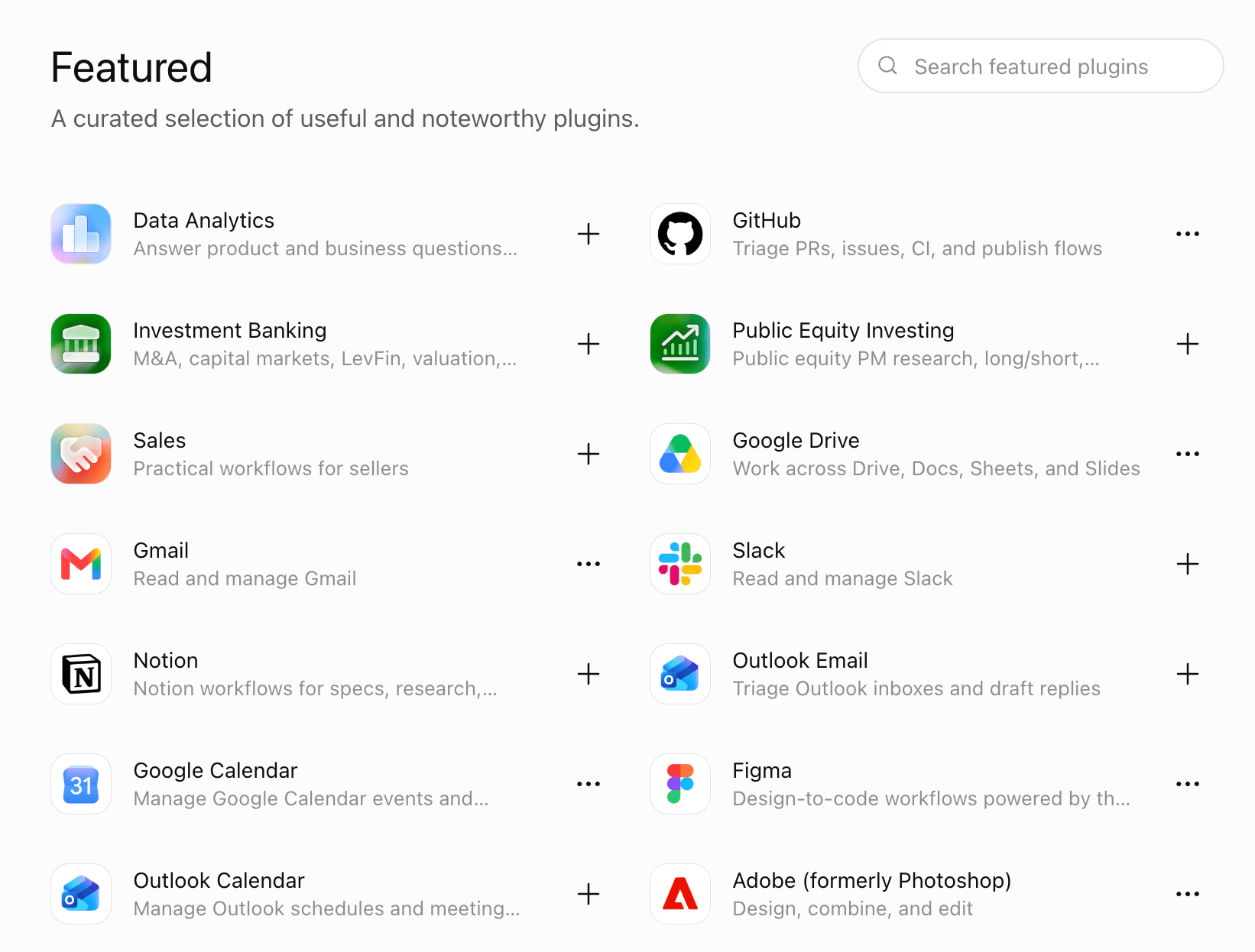
Pick from your AI tool’s curated list. Claude and ChatGPT each have a bunch of services pre-configured to work. Perplexity now does too. Popular ones include Google Drive, Gmail, Google Calendar, Canva, Figma, and Notion.
Paste in the address of a custom connector. For tools that are not on the default list, you put in an MCP address, which is like a special website to connect an external service to your AI tool. Find more to try in a directory.
Step by Step
Click connect on the service you want.
Log in to that service in the window that opens.
Approve permissions your AI assistant asks for, so it can access the external tool. Limit permissions to view only if you want your AI to see info from a linked service but not change anything. You can update permissions later in your AI tool’s settings.
Getting started with MCP connections doesn’t require any programming or technical wizardry. If you can add an app to your phone, you can do this. (Note: Google’s Gemini doesn’t yet enable easy MCP connections).
Be Careful About Linking Private Data
Think twice before connecting services that host sensitive info. I haven’t linked my bank accounts to my AI tools, for example. If you do that and someone gets access to your AI account, they’ll be able to find out a lot about your finances.
It can happen when a thief uses a “prompt injection” to manipulate an AI tool into releasing sensitive info.
Or it can happen if your phone is lost or stolen. New York, London, Paris, and other major cities see thousands of phones stolen each year (Zipdo 2026 report).
Data can also leak from AI systems. It’s rare, but there have been cases like this one.
Be Cautious About Letting AI Tools Act on Your Behalf
I’m not yet letting AI tools send emails for me. Or submit forms or applications. If Claude or ChatGPT generates something odd because of a glitch, or because I rushed a query, I want to be the one noticing the error.
When you start connecting AI tools to external services, you have the option to give your AI assistant power to do things on your behalf. That can be useful for research, summarizing meeting notes, or cleaning up messy computer folders.
But you or your AI assistant could make a costly mistake with important info. In a rare but alarming case, Cursor, an AI tool, deleted PocketOS’s company database and its backup (Guardian article). A related 2025 case involved Replit (Fortune article).
Other Ways Connected AI Can Go Wrong
Travel booking blunder. You ask it to cancel a reservation, and it cancels your entire itinerary. Or you ask it to book a flight on 7/1/27 and it books a nonrefundable ticket on 1/7/27, assuming you were using the European date system and meant January 7, not July 1.
Disappearing Files. You ask it to get rid of duplicate files. It deletes an entire folder with a similar name.
Calendar Chaos: You ask it to “find a time for everyone” and it reschedules an existing meeting in the wrong time zone, because you were traveling when you wrote the request.
I haven’t encountered any of these errors. But these services are still new, so you may encounter occasional bugs or blunders.
From Answer Machine to Headquarters
I initially thought of AI tools as answer machines. Ask for info, get back useful text. Then I thought of AI assistants as question machines, provoking me to think about things I hadn’t considered. Now I think of them as my online headquarters.
Claude serves as a dashboard where I can act on my email, notes, documents, calendar, designs, saved links, and meeting transcripts. It’s like having a new partner to support me and help make work a little more efficient and creative.
p.s. To see these connections in action, watch a recording of my live workshop. You’ll find it on the perks page for paid subscribers.