

🧹 Declutter Your Inbox
New tools + tactics to clean up your email


AI is leading to a boom in email slop. I get hundreds of marketing messages every week. Many seem AI authored.
I’m not alone in getting swamped. The average worker now gets 117 emails a day, according to Microsoft's Work Trend Index Report. Only 24% require an action, per SaneBox’s report.
I still use Superhuman for my primary email. It lets me act on messages quickly. It has helpful calendar functionality so I can schedule meetings without having to switch apps. But it doesn’t yet have a universal inbox for my three distinct addresses. I have to check each separately, trudging through each box’s digital slime.
Two inbox cleaning tips
If newsletters are clogging up your inbox, read them in an app like Meco or Readwise Reader. These dedicated readers keep your newsletters organized separately from personal and professional messages you have to respond to. We listen to podcasts and watch videos in separate apps, so why not newsletters?
Try a tool like Yorba for quickly and permanently unsubscribing from spam and irrelevant mailing lists. (Paid subscribers to Wonder Tools get a free year-long subscription to Yorba as a perk).
I’ve begun assessing a slew of other new email tools to cope with the sludge. I’m not ready to write about them yet. But if you’re curious about new services to explore, here are a few I’m testing, along with the benefit each promises:
Cora: Screen your email and get two daily briefs. It’s made by Every.to, a media and software company I like. I pay to subscribe.
Clean Email: Organize your mailbox with smart folders and filters. Dump junk more efficiently. Especially useful if you’re running out of inbox space.
Shortwave: Prompt an agent to organize, schedule, write and search your inbox. I mentioned it in my piece on email efficiency.
Talanoa: Sort your email by sender, not by chronological order
Extra: Organize your inbox in auto-organized categories like travel, news, and receipts. Founded by Pinterest’s former Chief Product Officer, it’s invite only for now, with a waiting list.
Filo: Pull tasks out of your inbox with an AI email agent.
Other AI email assistants, like Fyxer and Stamp, focus more on corporate use. Some focus on privacy, like Fastmail. Or like Missive, they’re made for teams.
The biggest tech firms are also rethinking email: Google is adding AI capabilities to Gmail, as are Microsoft with Outlook and Apple with Mail.
I’m exploring a bunch of these new tools and tactics this summer. Which email tactic/tool are you finding most useful? Leave a comment 👇
Sponsored Message

Access the World’s Best Ideas
I love reading. I have dozens of books lined up for this summer. But I can’t always find time to read everything on my list.
That’s why I rely on Shortform to help catch up with books I’m curious about but haven’t had time to read. I also use Shortform to remember key points from books I read years ago. I like the biography section, where I’ve learned about the lives of Malala, Bono, and Leonardo da Vinci.
While a lot of summary apps I’ve tried have 5-min, AI-generated, surface-level book overviews, Shortform’s writers and editors produce more in-depth, human-written coverage of nonfiction titles.
I also like the business section, which has detailed guides for classic titles and new books I’m curious about like Clear Thinking, by Shane Parrish. In addition to an expert-written overview of key points, with examples, excerpts, and references to related books, you get a one-page summary and contrasting ideas from other authors. Shortform now also has podcast and article guides. Wonder Tools readers get a nice discount. Try it free to explore.
Enjoy a free trial and $50 off the annual plan
For more on cleaning out unwanted mail, I’m handing off to Jared Newman, who writes the helpful Advisorator newsletter.
Jared Newman: Cutting down on those unwanted emails is easier than you might think. Whether it’s marketing junk, social media updates, or even (gulp) a no-longer-desired newsletter, here are some quick ways to get yourself off those mailing lists:
1. Search for “unsubscribe”
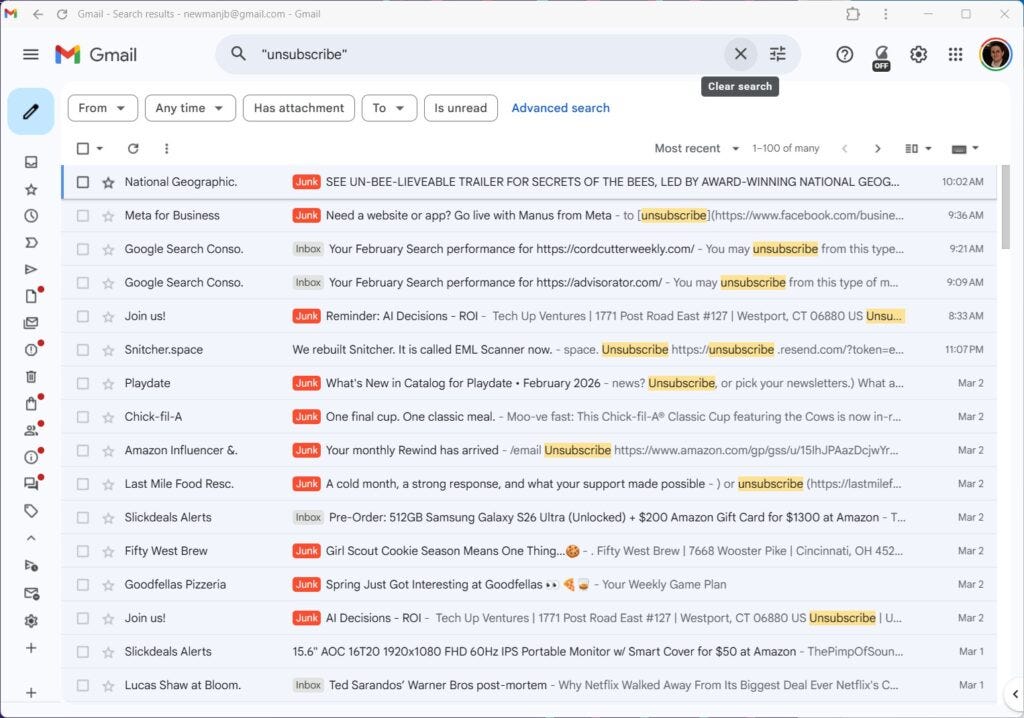
Under U.S. law, every company that sends you email also has to let you unsubscribe. That usually means they’ll include a little “unsubscribe” link at the bottom of the newsletter.
Searching your inbox for the word “unsubscribe” will therefore turn up a list of every company that’s sending you bulk mail. (You can also try searching for other terms like “opt out” or “manage your preferences.”) Click on the sender’s message, scroll to the bottom, and click the unsubscribe link to opt out.
Using Gmail, Yahoo Mail, or Apple’s Mail app? In Gmail and Apple Mail, you may see an “Unsubscribe” button at the top of the message, no scrolling required. With Yahoo Mail, click the “…” button while viewing a message, then click “Unsubscribe.”
2. Use your email app’s subscription manager
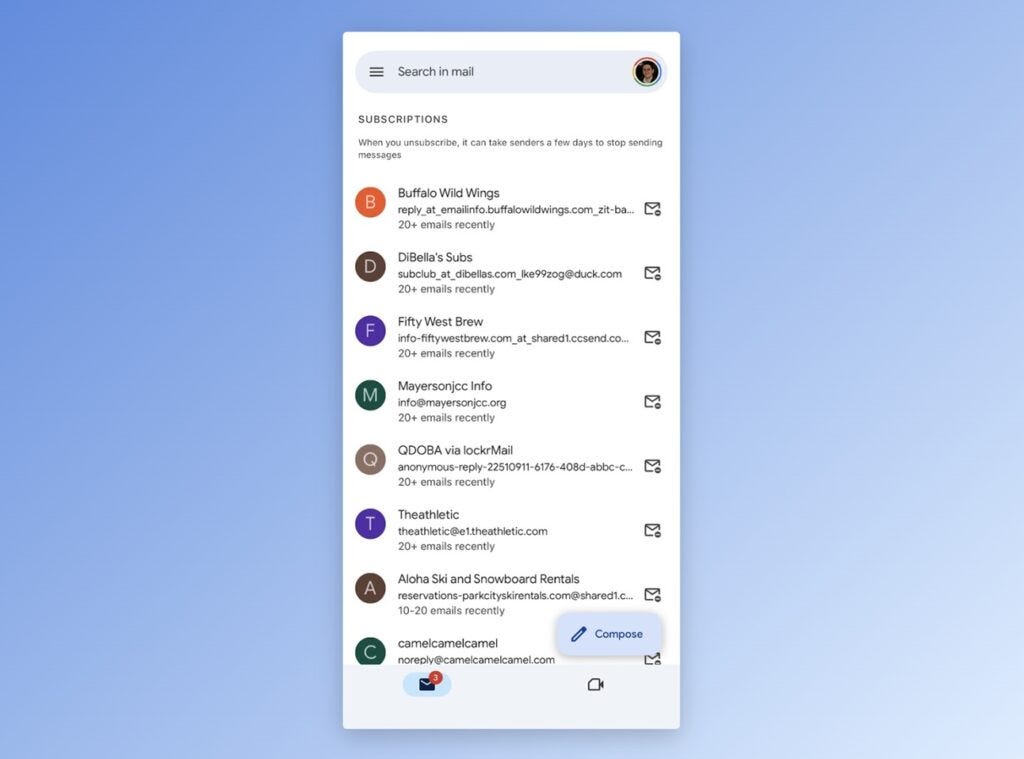
Gmail, Yahoo Mail, Outlook.com, and Proton Mail all have features that round up your bulk mail and let you unsubscribe with one click:
In Gmail: Click the “Manage subscriptions” button in the left sidebar menu, or head to https://mail.google.com/mail/u/0/#sub on Gmail’s desktop site. You’ll see a list of all bulk senders, arranged by how often they email you, plus a link to unsubscribe from each one.
In Yahoo Mail: Look under the “Views” tab in the left sidebar, then click the “Subscriptions” button. You’ll see a list of bulk mailers and options to unsubscribe from each, plus a separate “Unsubscribed” tab where you can opt back in later.
In Proton Mail: Look under the “Views” tab in the left sidebar, then click “Newsletters.” You’ll see a list of senders and how often they email you, plus an option to unsubscribe or move their messages to a folder. There’s also an “Unsubscribed” tab for opting back in.
On Outlook.com: Head to Settings > Mail > Subscriptions. Look under “Your current subscriptions” and select Unsubscribe for the messages you don’t want.
Heads-up: These lists can include things like travel booking sources and order confirmations. Before you unsubscribe, look at the sender’s messages to make sure you won’t miss anything important.

3. Sort email into categories
Some email apps can automatically sort messages into categories, ensuring that only the most important messages reach your inbox. Gmail and Apple’s Mail app, for instance, can sweep up marketing emails into a “Promotions” tab, while Yahoo Mail does the same with its “Offers” tab. Sorting your emails this way makes it easier to skim over and delete those that aren’t as important.
You may have these categories set up already. If not, see the documentation for Gmail, Yahoo Mail, and Apple Mail.
4. Use email aliases
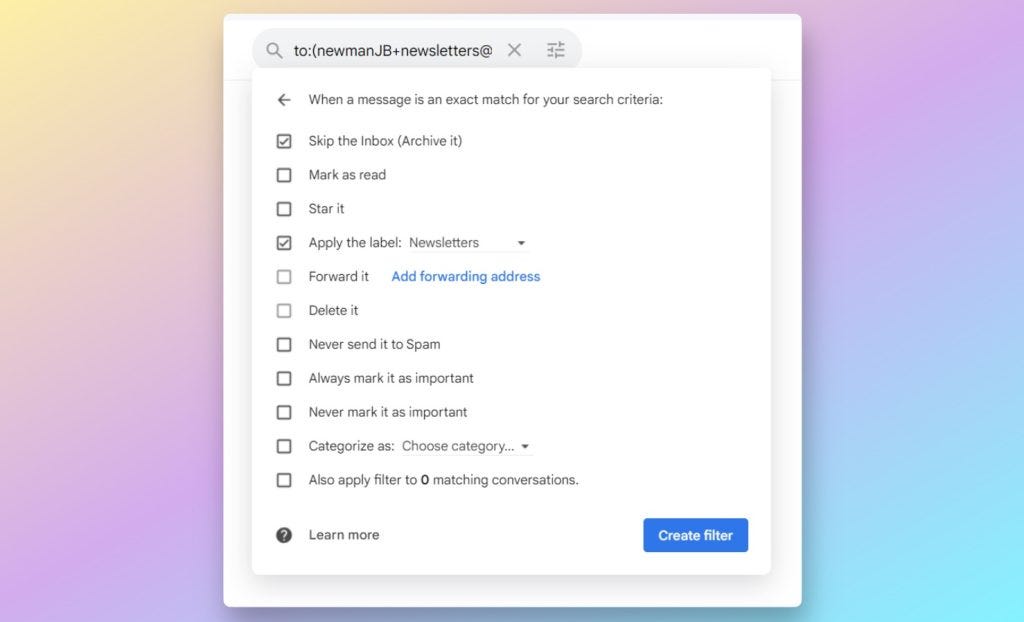
The next time you sign up for a new app, service, or newsletter, consider using an email alias or masked email address instead of your actual address.
Some Gmail users, for instance, have signed up for my newsletter with the address theirname+advisorator@gmail.com instead of just theirname@gmail.com. (Gmail ignores the + and anything after it, so the messages will still get to you). That way they’ll know who to blame if I ever start sending out spam, and they can set up filtering rules to sort my messages into a folder.
JC: For more of Jared’s tips, check out his useful Advisorator newsletter.
I use a dedicated gmail address for newsletters and, at 8am and 8pm, Claude cowork (a scheduled task) goes through the gmail box and provides a 4 bullet summary of each newsletter. It compiles these summaries in an email and puts a summary email in my Drafts, so I can access it easily. At the top of the email, Claude will indicate if there were any emails that seemed promotional rather than a newsletter, and puts them in a list so I can tell they are in the gmail box, but no summary was provided. Claude is quite accurate at separating out the promo emails from the real newsletters.
I would add that Talanoa tis privacy-first by design. Your email is stored 100% locally on your device. You can turn any email as task and manage them in a kanban. You also have a Calendar embed.
DM me for a free trial ;-)